Bam Tracking Device
Instructions
Last Update 01/027/2022
- Download the Gigs by Bam app on the App Store or Google Play store. The link to the Gigs by Bam app is available on our website: www.bamcases.com or by scanning the QR code displayed
on your tracker packaging. Click on the Gigs by Bam icon and scroll down to get the link to the App Store or Google Play store. - Register with an email or phone number and login.
- Connecting the tracking device.
- Click on the “track” tab in the app.
- Click on “Connect Case” or use the “+” button in the header to add your case.
- Scan the QR code on the bottom of the tracking device (the camera does it automatically) or
enter the QR code ID. - Click Synchronize.
- Click Save.
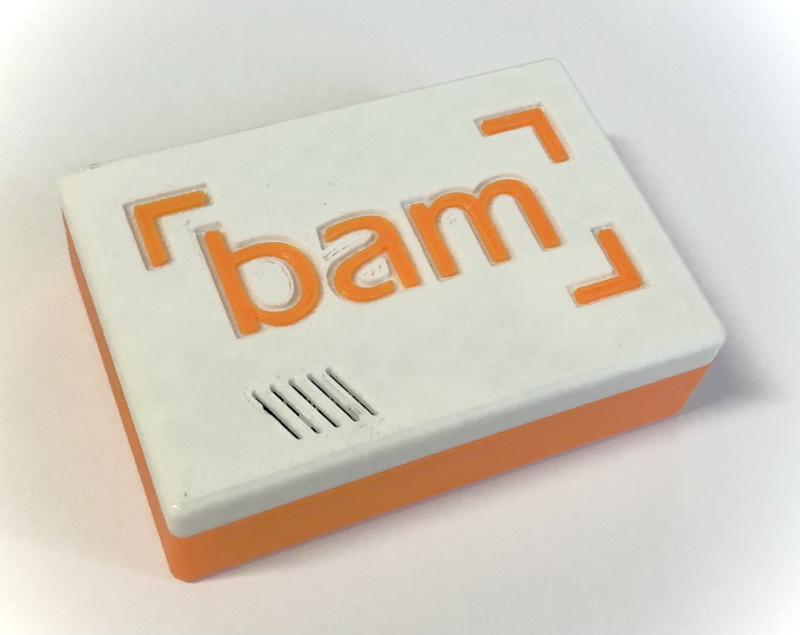
Congratulations on your new BAM tracking device! Our tracker will assist you in protecting and securing your valuable instrument. In this device, you will be able to monitor the temperature and humidity in your case and get notified as soon as the temperature gets too hot or cold, with added shock monitoring to monitor careless bumps against your case.
This manual will give you the basic instructions to set-up the device correctly and explain the different settings and operation modes.
General Information
For this new series of BAM trackers, we’ve designed an intelligent device which will send the environmental data and location of your case via a GSM mobile connection with global roaming functionality.
Please note that in some instances, GPS satellite signals are not available inside shielded buildings! Unlike your mobile phone, the tracker is not connected to a WiFi network and therefore cannot get precise location data inside strongly shielded buildings.
In situations where there is no GPS satellite signal, the tracker will send an estimated location depending on the nearest cellphone tower you are connected to. This will be within range of up to a several hundred feet depending on the size of the cell tower you are currently connected to. In this case, you will see an orange circle in the App as an indicator of the estimated location.
Your tracking device will send updated location data only when you are moving and every few minutes. The location updates will be displayed in the App after a refresh.
Start It Up!
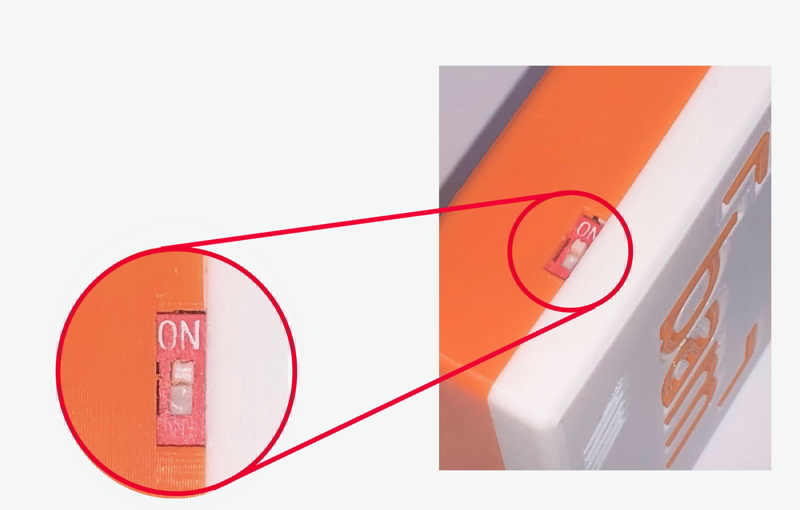
The device features an on/off switch to turn off all functionality, e.g. when you’re traveling by airplane and must switch off your mobile devices. Please make sure to set the switch to position “ON” before trying to connect the tracker to your mobile phone!
Configuration Mode
When the switch is set to “ON“, hold the tracker until you see a green light. Once illuminated, shake the tracker gently; the green light will start to blink which indicates “configuration mode“. If you do not shake the tracker, the green light will turn off after 5 seconds and the tracker is ready for “normal operation“ mode
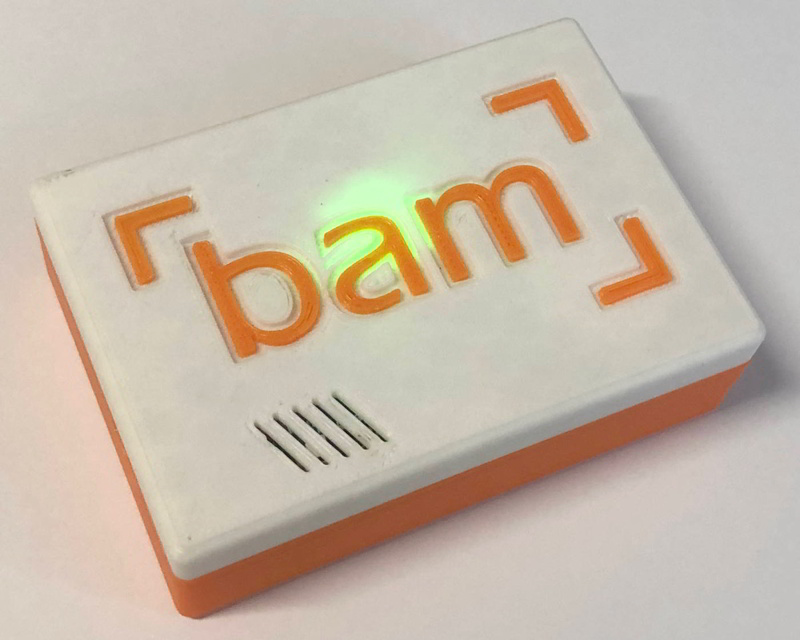
If you have started the configuration mode by shaking the device (green light is blinking) proceed as follows:
- Open the settings tab on your mobile phone and go to your WiFi connection settings. There should be a WiFi network called “Gigs-by-BAM_AP“.
- Select this network and if asked for the password, enter “123456789“ (without the quotation marks).
- Open the internet browser on your phone and navigate to this site: http://192.168.1.1
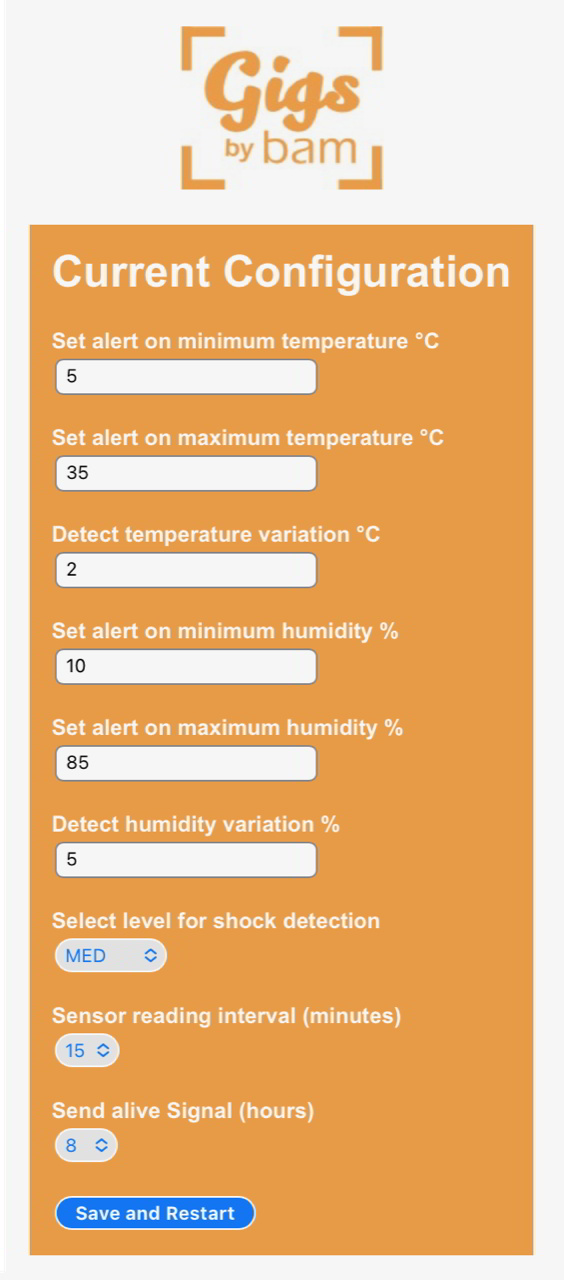
(you should be fine just entering 192.168.1.1 in the address field of your browser. There is no “.com” at the end!) - Now you should see a configuration page where you can set your preferences for the temperature and humidity.
- Set your max and min values for for temperature and humidity alerts and define the threshold for any notification changes. E.g. when you select 2 degrees for the threshold, the tracker will send an updated value when this difference in temperature has been reached.
- Down below you can set your time interval of how often the tracker will get new environmental data. It is best to set this to every 15 or 20 minutes, otherwise it would drain the battery too quickly.
- If absolutely no changes of temperature or humidity occur over longer periods of time, the tracker will automatically send an “alive signal “. This could possibly be at night when you have very static conditions with minimal changes. You shouldn’t change the default setting of 8 hours.
- Tap the “Save and Restart” button. The device will start up again with the new settings and it will show the green light again. Please make sure NOT to shake the device to enter the normal operating mode!
Important: If you accidentally shake it and enter configuration mode on startup, just switch the tracker off and on again or wait for 5 minutes, then it will restart automatically.
Normal Operating Mode
In normal operating mode, you will see red lights blinking only from time to time as an indicator when the tracker searches for a GSM Radio network and is sending data.
Charging the Battery
To charge the battery, plug in the USB cord provided and connect it to a charger or computer. A blue light will indicate the charging process. Once fully charged, the blue light turns off.
Please note: the device will only charge when the battery is switched on!
No environmental data or tracking information is sent while the charging process is active!